The five QuickBooks keyboard shortcuts that will save you the most time right now are: Ctrl + Alt + I (new invoice in Online), Ctrl + I (new invoice in Desktop), Ctrl + Alt + A (chart of accounts in Online), Ctrl + Alt + ? (open the in-app cheat sheet), and Alt + S (save a form). Learn those five and you will cut a meaningful amount of mouse-clicking from every session. The core rule to remember: QuickBooks Online uses a Ctrl + Alt modifier on Windows to sidestep browser conflicts, while QuickBooks Desktop uses a single Ctrl modifier because it runs as an installed application.
The highest-value shortcuts across both platforms at a glance:
- Ctrl + Alt + I — new invoice (Online, Windows)
- Ctrl + I — new invoice (Desktop)
- Ctrl + Alt + A — chart of accounts (Online, Windows)
- Ctrl + F — global search (Online)
- Alt + S — save a form (Online, Windows; use Alt + Shift + S in Chrome or Firefox)
- Ctrl + Alt + ? — open the in-app shortcut cheat sheet (Online, Windows)
- T — enter today's date in any date field (Online)
Keeping your hands on the keyboard during high-volume data entry removes the cognitive break that comes with reaching for the mouse. Over a full day of bookkeeping, those breaks add up.
Key takeaways
QuickBooks Online uses Ctrl + Alt on Windows to avoid browser conflicts, while QuickBooks Desktop uses a single Ctrl modifier, and learning five core shortcuts first is the fastest route to lasting efficiency gains.
| Point | Details |
|---|---|
| Start with five shortcuts | Learn new invoice, save, chart of accounts, global search, and the cheat-sheet hotkey before anything else. |
| Use date keys every session | Press T for today, + or - for adjacent days, and W/K, M/H, Y/R for period boundaries. |
| Know your browser caveat | Use Alt + Shift + S to save in Chrome or Firefox; Alt + S works in Internet Explorer and Edge. |
| Print the cheat sheet | Open Ctrl + Alt + ? (Windows) or Ctrl + Option + ? (Mac) and print it for your monitor. |
| Practise in sets of three to five | Add new shortcuts only once the current set feels automatic, after roughly 7–10 sessions. |
Subscribe to The AI Ledger's free Friday newsletter for plain-English updates on AI accounting tools, new QuickBooks features, and workflow automation tips delivered weekly.
Table of Contents
- What are the core QuickBooks Online shortcuts for Windows?
- Which shortcuts work when a form is open?
- How do date shortcuts and in-field calculations speed up data entry?
- How do browser differences affect QuickBooks Online shortcuts?
- How do QuickBooks Online shortcuts work on a Mac?
- What are the core QuickBooks Desktop shortcuts?
- How do Online and Desktop shortcuts differ, and which should you learn first?
- How should you practise shortcuts to build lasting muscle memory?
- How do you open the in-app cheat sheet and get a printable version?
- Sources
What are the core QuickBooks Online shortcuts for Windows?
QuickBooks Online keyboard shortcuts use Ctrl + Alt as the global modifier on Windows. This two-key prefix is deliberate: browsers already claim many single-Ctrl combinations, so Intuit chose a modifier that avoids those collisions. On Mac, the equivalent is Ctrl + Option.
| Action | Windows shortcut |
|---|---|
| New invoice | Ctrl + Alt + I |
| New expense | Ctrl + Alt + X |
| New cheque | Ctrl + Alt + W |
| Receive payment | Ctrl + Alt + R |
| Open customers list | Ctrl + Alt + C |
| Open vendors list | Ctrl + Alt + V |
| Open chart of accounts | Ctrl + Alt + A |
| Global search | Ctrl + F |
| Open help | Ctrl + Alt + ? (also opens cheat sheet) |
| Run payroll | Ctrl + Alt + Y |
Pro Tip: Press Ctrl + Alt + ? at any point in QuickBooks Online to open the in-app shortcut reference. It lists every available hotkey alongside your Company ID, which is handy when contacting Intuit support.
Which shortcuts work when a form is open?
Once you are inside a transaction screen, a separate set of form-level shortcuts lets you complete the whole workflow without touching the mouse.
- Alt + S — save the form (Windows, Internet Explorer)
- Alt + Shift + S — save the form (Windows, Chrome and Firefox)
- Alt + S + N — save and create a new form
- Alt + S + C — save and close
- Alt + S + E — save and send
- Alt + P — print the form
- Escape — cancel and close without saving
The save shortcut is where most users hit trouble. Chrome and Firefox intercept plain Alt + S, so the working variant in those browsers is Alt + Shift + S. Internet Explorer and Edge (legacy mode) respond to Alt + S directly.
Browser save-key caveat: If Alt + S does nothing in QuickBooks Online, your browser is intercepting the keystroke. Switch to Alt + Shift + S in Chrome or Firefox. Mac users should use Option + Control + S. If neither variant works, check whether a browser extension is reserving those keys before switching browsers entirely.
How do date shortcuts and in-field calculations speed up data entry?
Date fields in QuickBooks Online respond to single-key shortcuts that most users never discover. Once you know them, entering a date takes one keystroke rather than typing six characters or clicking a calendar.
- T — today's date
- + / - — move forward or back one day
- W — first day of the current week; K — last day of the current week
- M — first day of the current month; H — last day of the current month
- Y — first day of the current year; R — last day of the current year
- Alt + Down arrow — open the calendar picker
A quick memory trick: W and K are the first and last letters of "weeK." M and H follow the same logic for "montH." Y and R work for "yeaR."
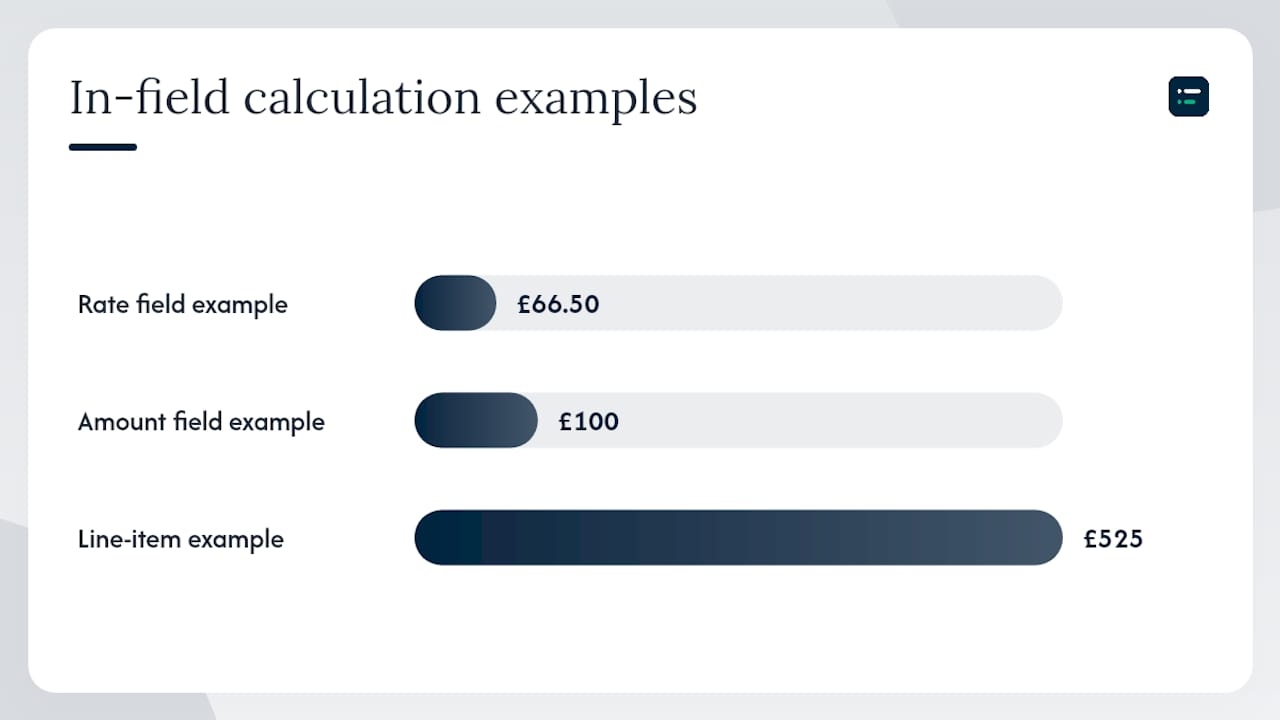
In-field arithmetic is equally useful. QuickBooks Online lets you type a formula directly into any Amount or Rate field and press Tab to resolve it. No external calculator needed.
Examples:
- Type
95*.7in a Rate field, press Tab — QuickBooks calculates £66.50 automatically. - Type
1200/12in an Amount field, press Tab — resolves to £100. - Type
450+75in a line-item field, press Tab — resolves to £525.
A quick invoice walkthrough: Open a new invoice with Ctrl + Alt + I. Tab into the date field and press T for today. Tab to the line-item amount, type your formula (e.g. 500*.8), press Tab to resolve it, then press Alt + Shift + S (in Chrome) to save. The whole transaction stays keyboard-driven from start to finish.
Pro Tip: Combine date shortcuts with Tab to move between fields. Press T for today's date, Tab to the next field, enter your formula, Tab again to resolve it. You will rarely need to lift your hands from the keyboard.
How do browser differences affect QuickBooks Online shortcuts?
Running QuickBooks Online in a browser means the browser itself can intercept key combinations before QBO ever sees them. Knowing which browser causes which conflict saves a lot of frustration.
- Chrome — intercepts Alt + S (use Alt + Shift + S instead); Ctrl + N opens a new browser window rather than a new transaction; Ctrl + W closes the current tab.
- Firefox — same Alt + S conflict as Chrome; some extensions can also block Ctrl + Alt combinations.
- Internet Explorer / Edge (legacy) — Alt + S works as expected; fewer conflicts overall, but these browsers are increasingly unsupported.
- Extensions — password managers, ad blockers, and tab managers frequently claim Alt or Ctrl + Alt combinations. Disable them temporarily to test whether a shortcut is blocked.
Practical steps when a shortcut stops responding: first try the Alt + Shift variant; if that fails, open Chrome's extension manager and disable extensions one by one; as a last resort, open QBO in an incognito window (which disables most extensions by default) to confirm whether the browser or an extension is the culprit.
Browser-native shortcuts that pair well with QBO include Ctrl + F (find text on a long register page), Ctrl + N (new window for a second client file), and Ctrl + + / Ctrl + - (zoom in and out when reading small figures). These work alongside QBO's own hotkeys rather than conflicting with them.
How do QuickBooks Online shortcuts work on a Mac?
Mac users replace Alt with Option and use Ctrl + Option where Windows uses Ctrl + Alt. The logic is identical; only the key labels change.
Common Mac equivalents:
- Ctrl + Option + I — new invoice
- Ctrl + Option + A — chart of accounts
- Option + Control + S — save a form
- Ctrl + Option + ? — open the in-app cheat sheet
The Command key (⌘) does not replace Ctrl in QuickBooks Online. Command-key shortcuts in macOS operate at the system or browser level, not inside QBO's own shortcut layer. If you try ⌘ + I expecting a new invoice, nothing will happen in QBO.
Pro Tip: On a Mac, print the cheat sheet immediately after opening it with Ctrl + Option + ?. The in-app overlay shows every shortcut in your current context, and having a paper copy next to your keyboard accelerates muscle memory far faster than trying to recall combinations from memory.
What are the core QuickBooks Desktop shortcuts?
QuickBooks Desktop is an installed application, so it does not share key combinations with a browser. That gives Intuit freedom to use a simpler single-Ctrl model, which most users find easier to memorise.
| Action | Desktop shortcut |
|---|---|
| New invoice | Ctrl + I |
| Write cheque | Ctrl + W |
| Open chart of accounts | Ctrl + A |
| Open register | Ctrl + R |
| New transaction (general) | Ctrl + N |
| Delete transaction or line | Ctrl + Del |
| Insert transaction line | Ctrl + Ins |
| Memorise transaction | Ctrl + M |
| Open transaction journal | Ctrl + T |
| Open product information | F2 |
Desktop also supports Alt + underlined letter shortcuts on every form. Each button or field label in a Desktop form has one letter underlined; pressing Alt plus that letter triggers the button or moves focus to the field. This enables fully keyboard-driven form entry without memorising a separate shortcut list. A compact top-20 Desktop shortcut reference is a useful starting point for bookkeepers building their shortcut repertoire.
How do Online and Desktop shortcuts differ, and which should you learn first?
The difference comes down to one structural fact: Online runs in a browser, Desktop does not. That single distinction explains every modifier-key difference between the two systems.
- Online uses Ctrl + Alt (Windows) or Ctrl + Option (Mac) to avoid browser conflicts.
- Desktop uses a single Ctrl because there is no browser layer to conflict with.
- Online's save shortcut varies by browser (Alt + S vs Alt + Shift + S); Desktop's save behaviour is consistent across all Windows versions.
- Desktop supports Alt + underlined-letter form navigation; Online does not.
A quick decision guide:
- If you work primarily in a browser, learn the Online Ctrl + Alt combinations first and memorise the Alt + Shift + S save variant for Chrome and Firefox.
- If you use the Desktop application daily, start with Ctrl + I, Ctrl + A, Ctrl + W, and Ctrl + M. Those four cover the majority of transaction creation and account navigation.
- If you use both, the accounting workflow bottlenecks guide explains where each system's shortcuts reduce the most friction in a mixed workflow.
How should you practise shortcuts to build lasting muscle memory?
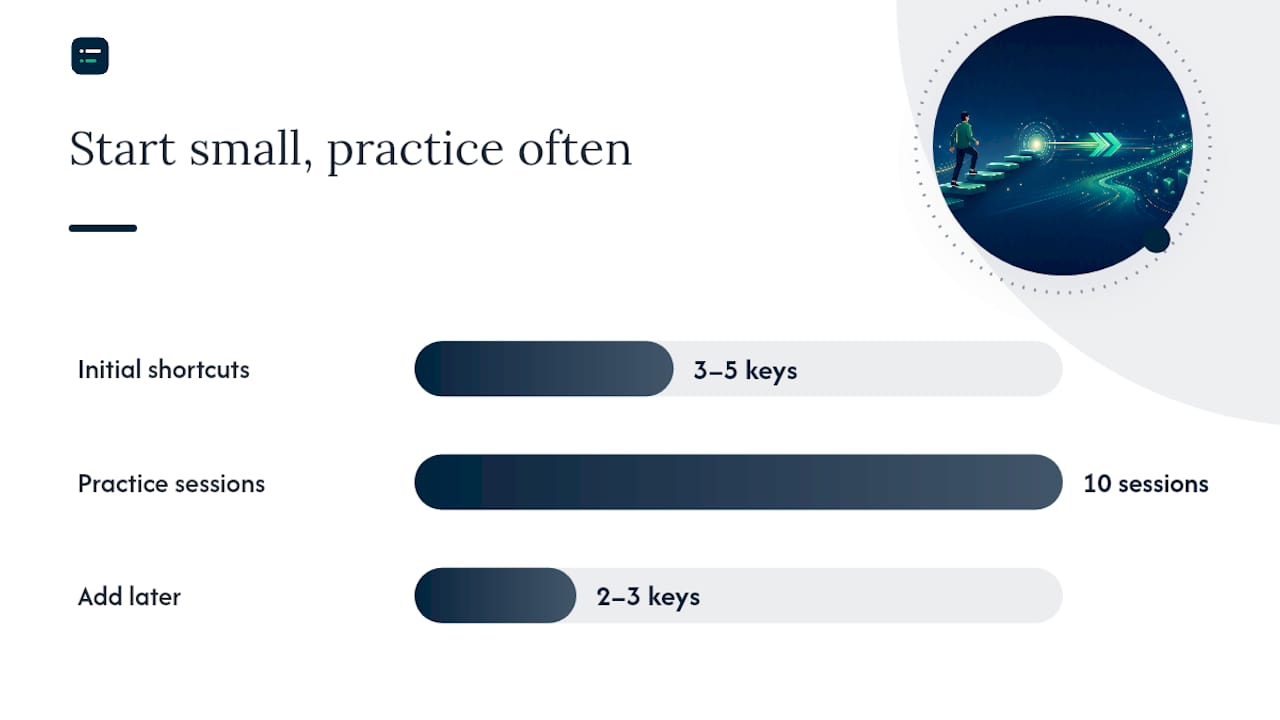
Workflow experts consistently recommend learning three to five shortcuts first, making them automatic, then expanding. Trying to memorise a full list in one sitting rarely sticks; small sets practised repeatedly do.
A structured plan:
- Week 1: Pick three to five shortcuts relevant to your most frequent task (new invoice, save, chart of accounts). Use them exclusively for that task, even when the mouse would be faster.
- Sessions 1–10: Repeat those shortcuts in every session. Ten short practice sessions beat one long memorisation effort.
- Week 2 onwards: Once those shortcuts feel automatic, add two or three more. Prioritise date keys and in-field arithmetic next, as they compound across every transaction you enter.
The reason small sets work is straightforward: muscle memory forms through repetition of the same motor sequence, not through reading a list. Keeping your hands on the keyboard also removes the cognitive interruption of switching to the mouse, which matters most during high-volume data entry.
Pairing shortcuts with accounting workflow templates multiplies the benefit. A template that pre-fills recurring transaction details, combined with keyboard-driven date entry and save shortcuts, can reduce the time per transaction significantly.
Pro Tip: Keep the in-app cheat sheet (Ctrl + Alt + ? on Windows, Ctrl + Option + ? on Mac) open in a second browser tab while you practise. Glancing at it is faster than breaking your flow to search online, and repeated glancing is itself a form of spaced repetition.
How do you open the in-app cheat sheet and get a printable version?
The fastest way to access every QuickBooks Online shortcut is the in-app cheat sheet:
- Windows: Press Ctrl + Alt + ? from anywhere in QBO.
- Mac: Press Ctrl + Option + ?.
The overlay that appears lists all available shortcuts grouped by category, plus your Company ID. You can print it directly from the browser (Ctrl + P) or take a screenshot and paste it into a document.
For a formatted A4 printable version, the QuickBooks Online shortcuts PDF guide from Tutorial Tactic provides a downloadable cheat sheet laid out for printing. Intuit's own UK support page also lists the full shortcut set in a format you can copy into a spreadsheet or word processor and format to your preference.
A suggested A4 layout: two columns, grouped by category (global shortcuts, form shortcuts, date shortcuts, in-field calculations), with the Windows shortcut on the left and the Mac equivalent on the right. Pin it to your monitor for the first two weeks of practice.
Pro Tip: If you manage multiple QuickBooks Online clients, consider keeping a QBO backup in place before experimenting with bulk data entry using new shortcuts. Keyboard-driven workflows are fast, but speed increases the cost of an accidental save.
A note from Aaron
Writing shortcut guides for QuickBooks is one of those tasks that looks simple until you sit down to do it. The Online versus Desktop split, the browser modifier differences, the Mac key substitutions — each one is a small thing, but together they explain why so many users give up on shortcuts after a frustrating first attempt. The goal here was to give you a reference you can actually use, not a list you have to decode.
The AI Ledger is an independent directory of 100+ AI tools for accountants and bookkeepers, with editor scores that are never for sale and a last verified date on every listing. If you are looking at ways to go further than keyboard shortcuts and automate more of your bookkeeping workflow, the directory and the 30-second tool finder are worth a look.
Sources
The following sources underpin the shortcuts and guidance in this article:
- Keyboard shortcuts for QuickBooks Online
- Top 20 QuickBooks Desktop Keyboard Shortcuts You Need to Know