A trial balance lists the closing balance of every ledger account at one point in time, and it exists to prove that total debits equal total credits before you trust anything downstream, including the balance sheet and profit and loss. QuickBooks can generate one in either flavour of the software, and the fastest path depends on the version you use, Online or Desktop.
In QuickBooks Online: go to Reports, find the "Trial Balance" report, set your date range and accounting basis, then run the report.
In QuickBooks Desktop: go to Reports → Accountant & Taxes → Trial Balance, select custom dates and report basis, then refresh.
Pro Tip: Before you trust any imbalance or missing figure, check the report basis and date range first. Often, a "broken" trial balance is due to an incorrect period or accounting basis setting.
Once it's open, you should see a straightforward layout:
- Every active ledger account, from bank accounts down to equity
- A debit column and a credit column for the period selected
- A totals row at the bottom, where debits should equal credits
If those two totals don't match, something in the ledger is genuinely wrong, not just displayed oddly. If they do match, that's your green light to move on to the balance sheet and profit and loss with confidence.
Key Takeaways
A trial balance proves total debits equal total credits across every ledger account, and QuickBooks generates one natively in both Online and Desktop, though neither shows opening, debit, credit and ending balances together without an Excel workaround.
| Point | Details |
|---|---|
| Run before, not after | Pull a trial balance before month end close and before handing statements to a client, not just when numbers look wrong. |
| Check basics before repairing | Confirm date range, report basis and filters before running Verify Data, Rebuild Data or Tool Hub. |
| Combine reports for full detail | Export to Excel and cross-reference Balance Sheet Detail and Reconciliation reports for opening, debit, credit and ending columns. |
| Balance is not accuracy | A balanced trial balance can still hide transactions posted to the wrong account entirely. |
| Automate the repeat exports | Use The AI Ledger's directory and 30 second tool finder to identify tools that handle recurring exports and reconciliation matching. |
Table of Contents
- Understanding trial balance basics: definition and the three rules
- Trial balance vs balance sheet and profit and loss
- How to run a trial balance in QuickBooks Online
- How to run a trial balance in QuickBooks Desktop
- How to show opening balances, debits, credits and ending balances together
- Fixing trial balance errors in QuickBooks
- Example trial balance layout and how the totals work
- When to run trial balances and best practices worth adopting
- What automation actually changes about trial balance checks
- Find the right automation tool for your practice
- Sources
Understanding trial balance basics: definition and the three rules
A trial balance is a bookkeeping worksheet that pulls the closing balance of every account in the general ledger onto one page, arranged so debits sit in one column and credits sit in another. It exists purely to check the arithmetic of double-entry bookkeeping, not to present financial performance to a bank manager or investor. QuickBooks builds this automatically from every transaction you've posted, which is precisely why it's such a fast diagnostic tool.
Three rules govern how a trial balance behaves, and every experienced bookkeeper should be able to recite them without thinking.
- Debits must equal credits. Every transaction posted in QuickBooks touches at least two accounts, and the sum of all debit entries must exactly match the sum of all credit entries across the whole ledger.
- Each account type carries a normal balance. Assets and expenses normally sit as debits; liabilities, equity and income normally sit as credits. An asset account showing a large credit balance is usually a red flag.
- A balanced trial balance does not guarantee a correct one. It catches one-sided posting errors and mathematical slips, but it will not catch a transaction posted to the wrong account, or a transaction missed entirely, because those still bring debits and credits into balance.
A trial balance that balances perfectly can still hide a transaction posted to completely the wrong account. Balance is not the same as accuracy, and treating the two as interchangeable is one of the most common mistakes new bookkeepers make.
There are three versions of this report, and knowing which one you're looking at matters. The unadjusted trial balance reflects raw ledger totals before any period-end adjustments. The adjusted trial balance comes after you've posted depreciation, accruals, prepayments and other adjusting entries, and it's the version you should reconcile against before preparing statements. The post-closing trial balance runs after year-end closing entries have zeroed out income and expense accounts, leaving only balance sheet accounts, and it becomes the opening position for the next period.
Trial balance vs balance sheet and profit and loss
The trial balance is an internal checksum. The balance sheet and profit and loss are polished outputs meant for people outside the bookkeeping function, including lenders, HMRC and business owners deciding whether to buy new equipment. Confusing the two roles causes more wasted client calls than almost any other reporting mix-up.
Think of the trial balance as the working draft that proves the numbers add up, and the balance sheet or profit and loss as the finished document built from that draft. The trial balance lists every account, assets and liabilities alongside income and expenses, all in one flat list with no formatting for readability. The balance sheet separates assets, liabilities and equity into a structured statement of financial position at a point in time. The profit and loss statement isolates income and expense accounts over a period to show whether the business made money.
- Run a trial balance before month end close, before handing accounts to a client, or whenever a number looks suspicious and you need to isolate which account is off.
- Run a balance sheet when you need to show financial position to a lender, investor or the business owner directly.
- Run a profit and loss when the question is about performance over a period, such as whether margins improved quarter over quarter.
A practical example: if a client's balance sheet suddenly shows negative cash, don't start investigating the balance sheet itself. Pull the trial balance first, because it will show you exactly which account is driving the imbalance without wading through formatted statement layout.
How to run a trial balance in QuickBooks Online
QuickBooks Online buries the Trial Balance report under the general Reports menu, but once you know the path it takes seconds to reach.
- Open Reports from the left navigation menu.
- Search "Trial Balance" in the report search bar, or scroll to the "For My Accountant" section where it usually lives.
- Set your date range, either a standard period or a custom range.
- Choose report basis, Accrual or Cash, from the dropdown near the top.
- Click Run Report.
From there, the customise panel is where the real work happens. Accountants use a handful of settings repeatedly:
- Date range, obviously, but also comparison periods if you want to spot swings against last month or last year
- Report basis, switching between cash and accrual to see how timing differences affect the numbers, a distinction worth understanding fully if you're new to it, and covered well in The AI Ledger's guide to automated accrual accounting
- Columns, either a single total or split by month, useful when you're tracking drift across a quarter
- Filters, particularly class filters for multi-entity clients, and an "active accounts only" toggle to strip out closed or unused accounts
QuickBooks Online's trial balance does list every Balance Sheet and Profit and Loss account within the same report, which is genuinely useful for a quick overview, according to Gentle Frog Bookkeeping's breakdown of the QBO report. The limitation shows up when you need opening balance, period debits, period credits and ending balance all displayed together. QBO's native report doesn't do this in one view, a gap acknowledged directly in QuickBooks' own community threads. The standard workaround is exporting to Excel or cross-referencing the Balance Sheet Detail report, which we cover in full in the next section.
After running the report, validate it with a short checklist: confirm the totals row shows equal debits and credits, confirm the date range matches what you intended, and spot-check two or three accounts against their individual registers.

Pro Tip: If a client asks for opening and closing balances side by side and QBO won't show it natively, don't waste time hunting for a hidden setting. Export straight to Excel and build the columns yourself. It takes five minutes and it's more reliable than chasing a report option that doesn't exist.
How to run a trial balance in QuickBooks Desktop
QuickBooks Desktop takes a more traditional route through its menu structure, and once you're used to it, the process is quicker than QBO's search-based navigation.
- Go to Reports in the top menu bar.
- Select Accountant & Taxes.
- Click Trial Balance.
- Under the report header, choose Custom for your date range and enter the exact dates you need.
- Select Accrual or Cash as the report basis, then click Refresh to apply changes.
Desktop offers a few customisation options that QBO handles differently. You can display columns broken down by month rather than a single period total, which is particularly useful for spotting a specific month where an account drifted. Some Desktop configurations also allow more granular filtering by account type, letting you strip the report down to just balance sheet accounts if that's all you need for a quick sanity check, a point covered well in Cleverence's guide to generating trial balances in Desktop.
If a report looks wrong and you're not sure whether it's the company file or the software itself, open QuickBooks' built-in sample company file and run the same report there. If the sample file behaves normally and produces a clean, balanced report, the problem sits in your client's data, not in QuickBooks itself. That single test saves an enormous amount of wasted troubleshooting time.
Before handing a Desktop trial balance to a client or using it for statement prep, run through this validation checklist:
- Toggle between Accrual and Cash basis and confirm the totals shift as expected, not randomly
- Refresh the report after any date change, since Desktop occasionally caches old figures until refreshed
- Cross-check the totals row against last month's closing figures to confirm continuity
Pro Tip: Keep a saved custom report in Desktop with your preferred columns and filters already set. Memorising the report through QuickBooks' "Memorize Report" function means you never rebuild the same customisation twice.
How to show opening balances, debits, credits and ending balances together
This is the single most requested trial balance feature among QuickBooks users, and it's also the one native limitation that trips up accountants who assume the software should just handle it, an issue confirmed repeatedly in community feedback threads. Neither QBO nor Desktop natively produces one report showing all four columns side by side for a custom period. You need a short workaround.
- Run the Trial Balance for the prior period end date to capture your opening balances.
- Run a second Trial Balance, or a Balance Sheet Detail report, for the current period to capture debit and credit movement.
- Export both to Microsoft Excel using the Export button in the report toolbar.
- In Excel, build four columns: opening balance, period debits, period credits, and calculated ending balance.
- Use a simple formula, ending balance equals opening balance plus debits minus credits, and check it against the closing figure from your second export.
Two other QuickBooks reports help you cross-reference these numbers instead of taking the exported figures on faith. The Balance Sheet Detail report shows every transaction that hit a balance sheet account during the period, which is exactly what you need to verify the debit and credit movement figure. The Reconciliation report shows cleared versus uncleared transactions for bank and credit card accounts, useful for confirming that your ending balance in the trial balance actually matches what's been reconciled against a statement.
- Confirm the opening balance in your Excel sheet matches the prior period's trial balance ending figure exactly
- Confirm total debits minus total credits for the period equals the net movement shown in Balance Sheet Detail
- Spot-check at least one bank account against its Reconciliation report to confirm cleared balances line up
Pro Tip: Build this Excel workbook once as a proper template with formulas already in place, then reuse it every month for the same client. A guide like The AI Ledger's piece on building repeatable workflow templates is worth reading if you want to standardise this across multiple clients rather than rebuilding it from scratch each time.
Fixing trial balance errors in QuickBooks
Most trial balance problems fall into three categories: totals that genuinely don't balance, totals that appear to accumulate figures from prior years incorrectly, or a report that simply won't respond when you change the date range. Work through them in order rather than jumping straight to a full reinstall.
- Check the basics first. Confirm the date range is correct, confirm the report basis matches what you expect, and check any active filters haven't excluded accounts you need to see.
- Refresh the report. Both QBO and Desktop occasionally cache old data; a manual refresh solves more "phantom" errors than people expect.
- Test with the sample company file. If the sample file also misbehaves, the issue is likely software-level rather than data-specific.
- Run Verify Data, then Rebuild Data if needed (Desktop only). Go to File → Utilities → Verify Data. If QuickBooks flags damage, follow with File → Utilities → Rebuild Data, a sequence recommended directly in QuickBooks' own support guidance.
- Open QuickBooks Tool Hub and run Quick Fix my Program. This closes background processes and refreshes QuickBooks' internal components, and it's the standard first-line fix Intuit recommends for calculation anomalies before anything more drastic.
- Reinstall QuickBooks only if steps 1 to 5 fail. A clean reinstall resolves corrupted program files, but it should be a last resort, not a first instinct.
- Contact QuickBooks support if the issue persists after a rebuild and reinstall, especially if it looks like a data corruption issue beyond what Verify and Rebuild can fix.
Common causes worth investigating directly, drawn from practitioner troubleshooting experience, include duplicated transactions, transactions posted to a suspense or uncategorised account, and journal entries with a missing offsetting line, all of which SaaSAnt's guide to trial balance troubleshooting walks through in more depth. Running the Audit Trail Report alongside the trial balance often isolates exactly which transaction caused an out-of-balance figure.
- Never skip the date range and report basis check, even if you're confident the issue is deeper
- Always test in the sample company file before assuming the problem is systemic
- Use Verify and Rebuild before Tool Hub's more invasive repair options
Pro Tip: Screenshot every step you take before contacting QuickBooks support, including the exact date range, report basis and any error messages. Support tickets resolve far faster when you can show precisely what you've already ruled out.
Example trial balance layout and how the totals work
Here's a simplified example showing how a properly formatted trial balance reconciles opening balance through to ending balance for a small set of accounts over one month.
This example simplifies real ledgers, which typically hold far more accounts, but the mechanics stay the same regardless of scale.
- Total debits and total credits in the movement columns won't always match line by line, because different account types carry different normal balances
- What matters is that the sum of all ending debit balances equals the sum of all ending credit balances across the whole trial balance, not just within one account
- A small mismatch, even a few pounds, usually points to a single miskeyed transaction rather than a systemic problem, and it's almost always faster to find by checking recently entered transactions than by re-auditing the whole ledger
When you're reviewing an exported Excel workbook against this kind of layout, check that your calculated ending balance column actually matches the ending balance QuickBooks reports independently. If it doesn't, the error sits in your Excel formula, not in QuickBooks.
When to run trial balances and best practices worth adopting
Cadence matters more than most bookkeepers admit. Running a trial balance only when something looks wrong means you catch errors weeks after they happened, by which point untangling the cause takes far longer.
Run a trial balance at month end close, before preparing any statement for a client or lender, and again at year end before closing entries post. A pre-statement check, specifically, catches errors before they embarrass you in front of a client who's already seen the numbers.
Build a few habits into your workflow and most trial balance headaches disappear before they start.
- Reconcile bank and credit card accounts before pulling the trial balance, not after, since unreconciled transactions are the single biggest source of surprise imbalances
- Review journal entries for a missing offsetting line every time you post one manually, rather than trusting muscle memory
- Restrict user access so only trained staff can post journal entries directly, cutting down on miskeyed transactions from junior team members
- Use class-based filtering for multi-entity or departmentalised clients so you're never accidentally blending two business units' figures into one trial balance, an approach worth reading up on in The AI Ledger's guide to multi-entity automation tools
Pro Tip: If you're running the same export and Excel recipe for multiple clients every month, that repetition is exactly the kind of task worth automating rather than repeating by hand. A saved template turns a fifteen-minute task into a ninety-second one.
What automation actually changes about trial balance checks
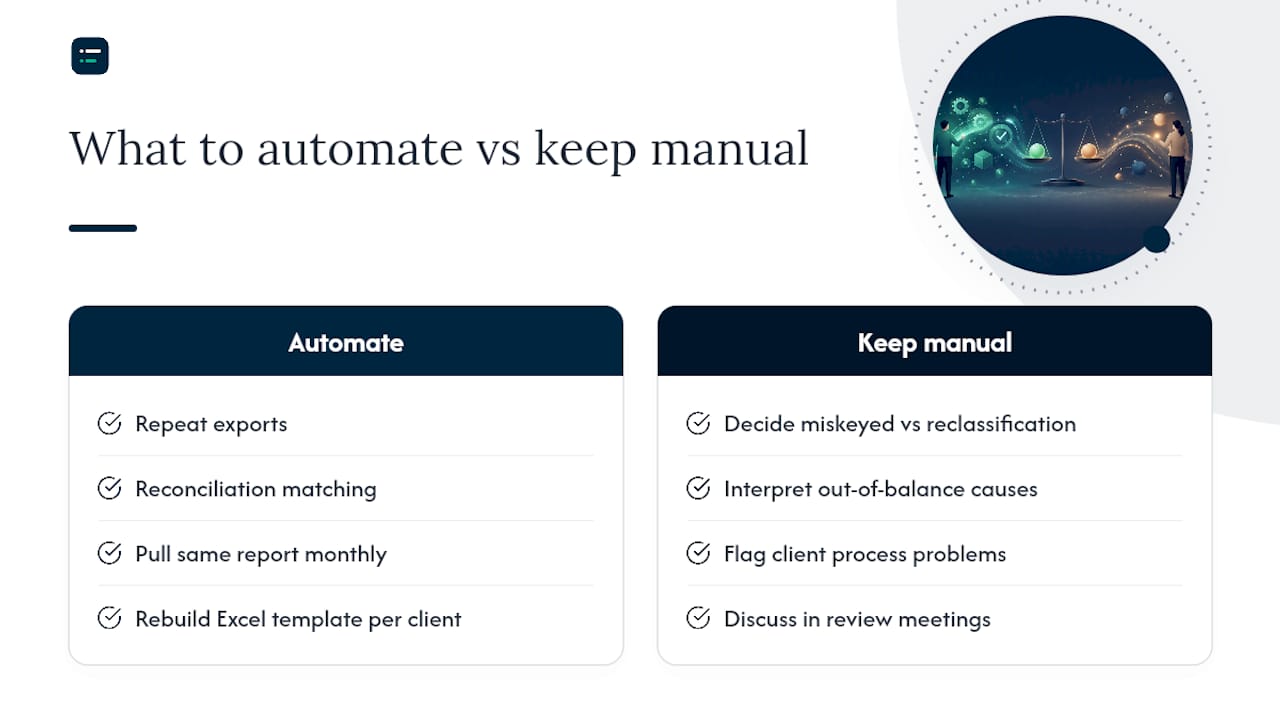
The manual side of trial balance work, the exporting, the copying figures between reports, the rebuilding of the same Excel template client after client, is where most of the wasted hours sit. None of that work requires judgement. It requires consistency, and consistency is exactly what automation does better than a tired bookkeeper at 4pm on a Friday.
Where automation genuinely earns its place is in repeat exports and reconciliation matching, tasks like pulling the same Balance Sheet Detail report every month and matching it against a reconciliation file, work that The AI Ledger's overview of AI in bookkeeping explores in more depth. Where it earns its place far less is in the actual judgement calls, deciding whether a miskeyed transaction was a genuine error or an intentional reclassification, or whether an out-of-balance figure signals a client process problem worth flagging in a review meeting. Automate the plumbing, keep a human on the interpretation.
The practical dividing line is this: if a task is the same shape every single month and the only thing that changes is the numbers, automate it. If a task requires you to ask "does this look right given what I know about this client," keep it manual, at least for now.
Pro Tip: Test automation on your lowest-risk client first, not your most complex one. If the tool handles a simple sole trader's exports cleanly for two or three months running, that's your signal it's ready for something more demanding.
Find the right automation tool for your practice
Manually rebuilding the same Excel workbook every month, or chasing down which client's reconciliation report doesn't match their trial balance, is exactly the kind of repeat work that eats a bookkeeper's Friday afternoon. The AI Ledger exists so you don't have to guess which automation tool actually solves that problem for your practice, rather than trawling review sites full of paid placements.

A handful of things automation genuinely helps with once you've got your trial balance workflow sorted:
- Automating recurring exports so you're not manually pulling the same report every month
- Mapping accounts consistently across clients so reconciliation differences surface faster
- Flagging out-of-balance figures automatically instead of waiting for a client to notice first
The AI Ledger's directory of AI accounting tools covers more than 100 options with independent editor scores, honest verdicts, and a last verified date on every listing, so you're never working off stale information about a tool's pricing or features. Every listing is independently reviewed, and no score is ever for sale. The 30 second tool finder matches your practice's tasks, whether that's export automation, reconciliation matching, or month end close, to software that's actually built for it, and the free weekly Friday newsletter keeps you across new features and price changes in plain English. If repeat exports and reconciliation checks are quietly costing you hours every month, start with The AI Ledger's tool finder and see what fits your practice.
Sources
Different questions call for different sources, so pick based on what you actually need answered.
- Trial balance: Definition, purpose, and example - QuickBooks
This article is general information, not a substitute for advice from a qualified financial advisor. Consult a qualified financial professional about your own circumstances before acting on anything here.