Connect your bank feed in three moves: authorise the connection, select which accounts to share, and confirm the opening balance before your first transactions land. That is the entire job in outline. The detail is what stops it going wrong.
Do this now, in order:
- Log into your accounting software, go to the banking or bank feeds screen, and start the connection to your bank.
- Authorise access through your bank's login (not your software's), select the correct current account, and set the import start date to match your last reconciled statement.
- Check the opening balance shown in the software against your actual bank statement on that date.
You will know it has worked when transactions start appearing in your banking queue within a day or two and the opening balance ties out exactly to the bank statement. If it does not tie out, stop before you code a single transaction.
Pro Tip: The single most common mistake is setting the wrong opening balance or start date, which then duplicates transactions you have already entered manually. Fix the balance first, everything else follows from it.

Open Banking rules govern most of these connections in the UK, and Gov publishes general guidance on keeping financial records that is worth bookmarking if bank data feeds into your tax filings. The AI Ledger tracks which software handles this setup with the least friction, which matters more than it sounds once you have done it for a third client.
Key Takeaways
Getting an automated bank feed right comes down to setting the correct opening balance and start date before anything else, then reviewing rather than blindly trusting auto-matches.
| Point | Details |
|---|---|
| Verify before coding | Match the opening balance to your last reconciled bank statement before entering any transactions. |
| Avoid duplicate imports | Set the feed's start date to the day after your last manual entry to prevent overlap. |
| Review auto-matches | Check suggested matches rather than accepting them automatically, especially on new bank rules. |
| Reauthorise on a schedule | Assign one person to manage reauthorisation across client feeds rather than waiting for a break. |
| Compare connectors properly | The AI Ledger's 30-second tool finder and independently scored listings help match a connector to your practice size and task. |
Table of Contents
- What is an automated bank feed and which type will you get?
- What do you need before connecting a feed?
- How do you set up a bank feed step by step?
- Platform notes: Xero, ClearBooks, Cobase and Plaid
- How does consent work under open banking?
- Why did my bank feed stop working or show wrong data?
- Which connector or software actually suits your practice?
- What accountants get wrong when setting up feeds
- Need help choosing the right connector or software?
- Where to check the detail yourself
- Frequently asked questions
- Sources
What is an automated bank feed and which type will you get?
A bank feed is a secure, ongoing connection that pulls transaction data straight from your bank into your accounting software, so debits and credits appear in your banking module without anyone typing them in. Most feeds refresh daily, and the transactions arrive as uncategorised entries waiting for you to match or code them, which is exactly what turns bookkeeping into a review task instead of data entry.
You will meet four connection types in practice, and they are not interchangeable:
- Direct open-banking API: your bank talks to the software directly, authorised through your bank's own login screen. Fastest and most reliable.
- Third-party aggregator (like Plaid): sits between dozens of banks and hundreds of software platforms, useful when your bank has no direct integration.
- SFTP or statement push: your bank transmits encrypted files on a schedule, common with business banking portals that lack a modern API.
- CSV or manual import: you download a statement and upload it yourself. No live connection, no reauthorisation, but no automation either.
Direct API connections tend to win on speed and reliability. Aggregators trade a little reliability for broader bank coverage. Manual CSV import is the fallback when nothing else connects, not a long-term strategy.
What do you need before connecting a feed?
Getting this right before you start saves an afternoon of untangling duplicates later. Gather these first:
- Admin access to your accounting software and your online banking login (never share the banking password with a colleague; each person authorises with their own credentials).
- A verified mobile number for multi-factor authentication, since most bank feed setups now require it.
- The correct account type confirmed as a business current account, not a personal one dressed up as a sole trader account.
- Your desired import start date and the opening balance from your last reconciled bank statement.
- A note of any statement periods you have already imported manually, so you do not pull the same weeks in twice.
Decide who in the practice authorises the connection and who gets ongoing access to manage it. One person owning the connector avoids the situation where three team members each think someone else handles reauthorisation.
Pro Tip: If you manage multiple client accounts, connect one low-risk test account first. Watch it for a week before rolling the same setup out across a full client list.
How do you set up a bank feed step by step?
The exact screens differ between platforms, but the sequence is the same everywhere. Follow this and you will not need to guess at any stage:
- Open the banking section in your accounting software and choose to add a new bank account.
- Search for your bank in the connector list, or add it manually if it does not appear (this usually means it needs the SFTP or CSV route instead).
- Authorise the connection through your bank's own login page, not a form inside the accounting software. This is the open-banking consent step, and it exists specifically to avoid you handing over your banking password to a third party.
- Select which accounts to share. Only tick the accounts you actually want feeding into that ledger; a business current account and a savings buffer are not always meant for the same treatment.
- Set the import start date and opening balance, matched to your last reconciled statement date, not today's date.
- Map the feed to the correct ledger account in your chart of accounts, so transactions land where your reports expect them.
- Enable matching rules where the software supports them, but leave them narrow at first rather than broad.
On historical transactions: most platforms will pull back up to 12 months of past activity if your bank supports it, which is genuinely useful for catching up a new client. The risk is double counting. If you have already entered March by hand, and the feed also pulls March, you now have every March transaction twice. Set the start date to the day after your last manual entry, always.
Once the feed is live, run four checks before you trust it:
- Open the banking queue and confirm transactions are actually landing, not just the connection status showing green.
- Spot-check five or six transactions against your actual bank statement for the same dates.
- Run a full reconciliation for the first period and confirm the closing balance matches.
- Review any auto-matched transactions rather than accepting them blindly. Blind acceptance of auto-matches is one of the most common causes of reconciliation errors after setup, alongside duplicate imports and bank rules written too broadly.
Pro Tip: Build bank rules gradually and narrowly. A rule that catches "TESCO" and codes it to groceries works. A rule that catches any transaction over £50 and codes it to "general expenses" will misfile things you will not notice until year end.
Set a weekly cadence for reviewing the banking queue rather than letting two months of transactions pile up unmatched. And settle on one consistent naming convention for accounts across your cloud accounting setup, because "Business Current" and "Main A/C" being the same account confuses every new team member who joins.
Platform notes: Xero, ClearBooks, Cobase and Plaid
Each platform has its own quirks worth knowing before you connect anything.
Xero connects most UK banks directly through open banking and generally refreshes daily. The gotcha: Xero's bank rules can silently override matching suggestions if you have overlapping rules, so audit your rule list occasionally rather than only adding to it.
ClearBooks supports direct feeds for major UK banks and a manual statement upload for the rest. Its reconciliation screen is more literal than some competitors, meaning a mismatched date on import shows up as an unreconciled item rather than being smoothed over automatically, which is actually a feature once you know to expect it.
Cobase is aimed more at multi-bank, multi-entity treasury setups than single small business accounts, so if you are managing feeds across several banking relationships or currencies, it handles that aggregation differently to a standard SME accounting package. Expect a more involved onboarding conversation with their team rather than a self-service toggle.
Plaid, as an aggregator rather than an accounting platform itself, sits behind many other tools' "connect your bank" buttons. Its behaviour differs from a direct bank connection: reauthorisation tends to happen more frequently, and if your bank changes its authentication method, Plaid's connection can lag behind until it updates its side of the integration.
For exact click paths and screenshots, go to your specific vendor's support pages rather than relying on general guides, since screens change between software versions. The AI Ledger's accounting software integration guide covers how these connector types typically interact with your chart of accounts if you want the mapping logic explained separately.
How does consent work under open banking?
Open banking consent replaces the old practice of handing your banking password to a third-party app. Instead, you authorise access directly through your bank's own login screen, and the software or aggregator only ever receives the transaction data your bank agrees to share, never your credentials. Encrypted API or SFTP transmission keeps that data secure in transit, and you retain the right to revoke access at any point without contacting the third party at all, simply through your online banking settings.
A few practical checks worth doing early:
- Confirm in your online banking portal who currently has active consent to your accounts, and revoke anything you do not recognise.
- Check the connector's privacy statement for how long they retain transaction data after a feed is disconnected.
- Note the lawful basis for processing bank data in your client file if you handle bookkeeping for other businesses, since this sits within your GDPR obligations as a data processor.
Pro Tip: Put one named person in the practice in charge of reauthorisation across all client feeds, and put reauthorisation dates in a calendar rather than waiting for a feed to break before anyone notices.
Why did my bank feed stop working or show wrong data?
Most feed problems fall into five categories, and each has a fairly quick fix.
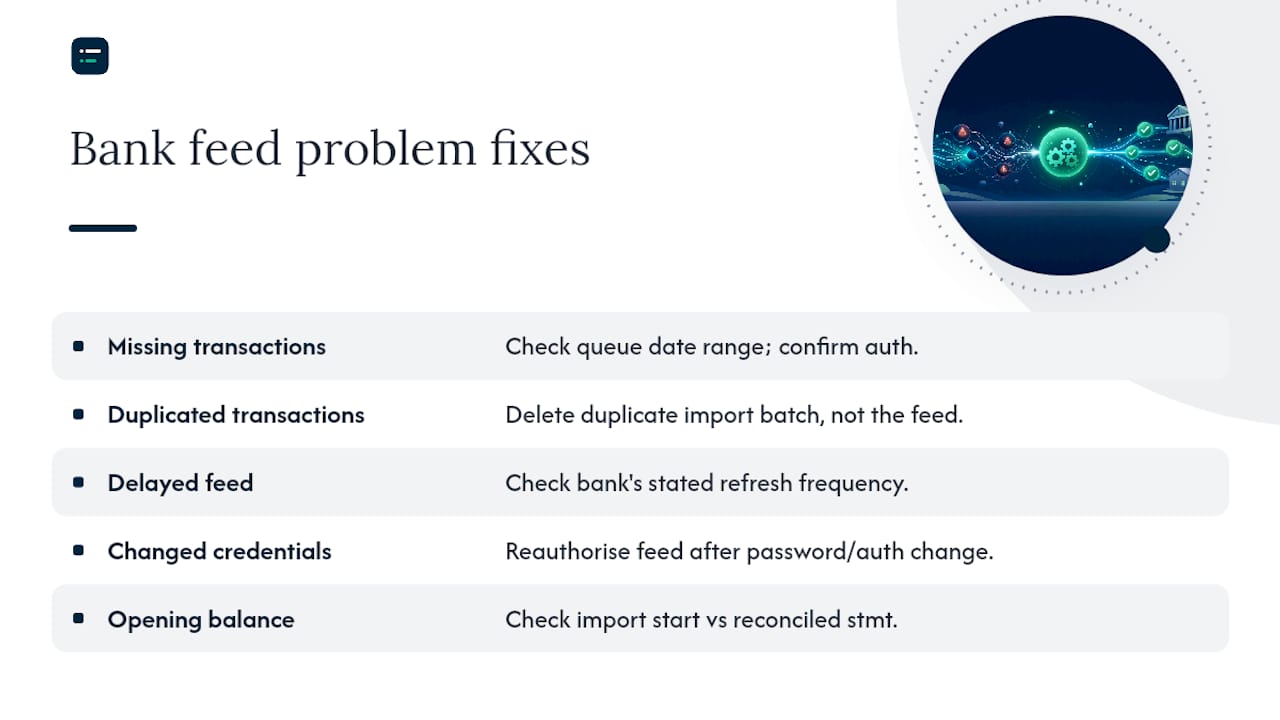
Missing transactions: check the banking queue date range first, then confirm the connector's authorisation status hasn't lapsed. A silently expired connection is the usual cause.
Duplicated transactions: almost always caused by a manual CSV import overlapping with the live feed's date range. Delete the duplicate batch, not the feed.
Delayed feed: some banks only refresh once every 24 to 48 hours regardless of software settings; check your bank's own stated refresh frequency before assuming the software is broken.
Changed bank credentials: if you have recently changed your online banking password or added a new authentication method, the feed will need reauthorising, sometimes immediately, sometimes at the next scheduled refresh.
Mismatched opening balance: this points back to setup, almost every time. Re-check the import start date against your last reconciled statement date.
Before contacting support, collect the account name, the date range affected, a screenshot of the banking queue, and any transaction reference numbers you can see. That alone cuts most support conversations from three emails to one.
Which connector or software actually suits your practice?
Choosing between connectors gets easier once you settle on a short checklist: bank coverage (does it support your client's actual bank, not just the big four), refresh frequency, how much transaction detail comes through (some feeds strip out payee references that others keep), reauthorisation cadence, and what support looks like when something breaks.

Operationally, the practices that get the most out of feeds treat them as a weekly job, not a monthly scramble. Write bank rules narrowly, log any feed changes so you have a record when a client asks why a connection needed resetting, and add a short audit note to reconciliations where an auto-match needed correcting. If you manage several client entities, an aggregated connector setup can simplify oversight, though a smaller practice with one or two bank relationships per client rarely needs that complexity. The AI Ledger's guide to accounting workflow automation has more on where feeds fit into a wider automated setup.
Pro Tip: Pilot any new connector on one low-value account for a fortnight and time how long reconciliation takes before and after. That number is what actually justifies switching tools, not the sales page.
What accountants get wrong when setting up feeds
Most setup mistakes come from moving too fast. Someone connects the feed, skips checking the opening balance because "it looks about right," and finds three weeks later that forty transactions are sitting duplicated against a manual import nobody remembered doing. The fix is not complicated: check the balance against the statement before you code a single line.
The bigger habit worth breaking is trusting auto-matching completely. Software has got genuinely good at suggesting matches, but a suggestion is not a decision. A rule that files "Amazon" purchases automatically will happily miscode a business software subscription as office supplies for a year before anyone spots it in a report.
Split the work: daily glances at the banking queue to catch anything obviously wrong, and a proper monthly reconciliation where you actually interrogate the numbers rather than clicking through them. And if a feed behaves oddly for a client, tell them plainly what happened and what you did about it. Vague reassurance erodes trust faster than an honest "the bank changed something, we fixed it, here's what to expect."
Need help choosing the right connector or software?
Picking between platforms is often the hardest part of this whole process, not the setup itself. The AI Ledger runs a 30-second tool finder that matches your practice size and the task you're automating, in this case bank feed connections and reconciliation, against the right software rather than leaving you to compare feature pages one at a time.
Every listing in the directory carries an independent editor score and a last verified date, and none of those scores are for sale, so what you see reflects how the tool actually performs rather than who paid for placement. If a connector's reauthorisation cadence or bank coverage changes, that gets picked up in the weekly Friday newsletter too, which is worth subscribing to if you manage feeds across more than a handful of clients. Head to The AI Ledger to run the comparison and find a connector that fits how your practice actually works.
Where to check the detail yourself
- Open banking and bank feed security model
- What automated bank feeds actually do
- Setup tips and historical import limits
- How bank feeds transmit and secure data
- Gov
Always check your own software vendor's support pages for exact screenshots, since click paths change between updates.
Frequently asked questions
How long does it take to set up an automated bank feed? Most connections complete within 10 to 15 minutes once you have your online banking login and account details ready. Historical data import can take longer to populate, sometimes up to 24 hours for a full 12-month pull.
Do automated bank feeds cost extra? Feed access is usually included in standard accounting software subscriptions rather than charged separately, though some aggregator-based connections carry their own fee depending on the platform you use.
Can I connect more than one bank account to the same software? Yes. Most platforms let you connect multiple accounts, including savings and multi-currency accounts, and map each one to a different ledger account.
What happens if I lose access to my bank feed? The connection typically needs reauthorising through your bank's login screen, particularly after a password change or an extended period of inactivity. Reconnecting takes a few minutes and does not affect transactions already imported.
Is it safe to link my bank account to accounting software? Open banking connections use encrypted transmission and never share your banking password with the software provider, and you can revoke access at any time through your online banking settings.
Sources
- Bank Feeds API & Automated Reconciliation | Codat
- Automated Bank Feeds: Meaning and Example
- What is a Bank Feed? Benefits, Setup & Time-Saving Tips
- What’s a bank feed?