Move now, start small, and phase the work. The fastest path to a successful spreadsheets to software transition is a three-step launch sequence you can complete within the next 72 hours:
- Run a quick inventory. List every workbook your team touches, who owns it, and how often it is used.
- Pick a pilot dataset. Choose one process with 1,000 records or fewer, ideally your active client list, and export it to a clean CSV.
- Back up all spreadsheets to read-only archives. Lock the originals before you touch a single row of data.
For a typical UK small or medium business, a pilot covering 1,000–5,000 contacts takes 10–14 business days from kickoff to go-live, with 3–7 of those days spent on data cleanup alone. Full rollout across client management, project tracking, and finance usually runs 6–12 weeks when phased correctly.
Key takeaways
Transitioning clients from spreadsheets to software succeeds when cleanup precedes import, the rollout is phased, and leadership uses the new system from day one.
| Point | Details |
|---|---|
| Clean data before importing | Deduplicate, standardise formats, and archive stale records before a single row is imported. |
| Phase the migration | Start with client management, then project tracking, then finance; validate each stage before moving on. |
| Pilot with 50–100 records | Run a small test import, fix field mappings, then scale in batches to reduce rollback risk. |
| Budget 3–7 days for cleanup | For a small team pilot of 1,000–5,000 contacts, total migration runs 10–14 business days. |
| Use The AI Ledger to shortlist | The 30-second tool finder at ailedger.uk matches your practice to UK-ready tools with independently reviewed editor scores. |
Table of Contents
- Why your business has probably already outgrown spreadsheets
- How to plan and scope what you migrate first
- How to audit every spreadsheet before you migrate anything
- Data preparation: clean your records before you import a single row
- How to choose the right software category for your use case
- How to run a pilot migration with a clear rollback plan
- Training and change management: making the new system stick
- Realistic timelines and cost bands for UK businesses
- Common pitfalls and how to avoid them
- Where to find and compare UK-ready tools
- What migration work actually looks like in practice
- The AI Ledger helps you shortlist the right tools faster
- Sources
Why your business has probably already outgrown spreadsheets
The signs are rarely dramatic. They accumulate quietly until one missed client record or one corrupted formula costs you real money or a real client relationship.
Check how many of these apply to your practice right now:
- Two people edited the same file and one version was overwritten
- A client record exists in three different workbooks with three different phone numbers
- You cannot produce a pipeline report without manually copying data between tabs
- A new team member has access to salary data they should never have seen
- You spent more than 30 minutes last week reconciling figures between two spreadsheets
- A formula broke silently and nobody noticed until month-end
If three or more of those are true, the migration is overdue. If five or more are true, you are carrying operational risk every single day.
Beyond the operational friction, there is a regulatory dimension. Spreadsheets stored on local drives or shared via email are difficult to audit, version-control, or restrict by role. Under UK GDPR, you are responsible for demonstrating that personal client data is held securely, accessed only by authorised individuals, and retained only as long as necessary. A shared Excel file with no access log satisfies none of those requirements. The Information Commissioner's Office expects controllers to implement appropriate technical measures, and an unprotected spreadsheet is not one of them.
How to plan and scope what you migrate first
Not everything needs to move at once. A phased approach works best: start with client management, then project and task tracking, then finance and reporting. Running systems in parallel and validating each stage before moving to the next keeps risk low and gives your team time to build confidence.
Use this prioritisation checklist to rank each spreadsheet or process:
- Impact. If this process breaks, how badly does it affect clients or revenue?
- Frequency. Is it used daily, weekly, or only at month-end?
- Regulatory sensitivity. Does it hold personal data, financial records, or anything subject to HMRC retention rules?
- Integration need. Does it feed into another system, or does another system feed into it?
- Formula complexity. Are there macros or nested formulas that encode business logic you cannot afford to lose?
Score each spreadsheet 1–3 on each dimension. Migrate the highest scorers first.
Define your pilot boundary before you start. A compact scope template keeps the pilot from expanding:
- Pilot name: Active client list
- Record count: Under 1,000
- Owner: Named person
- Success criteria: Record count matches source, zero duplicate contacts, all email addresses validated
- Out of scope: Historical invoices, archived leads, payroll data
For client-facing migrations, phase by small cohorts: start with five trusted clients, confirm the full journey works, then move the next 10–15, and finally the remainder. This limits confusion and gives you a controlled environment to fix problems before they affect everyone.
Useful KPIs to track migration success: time saved per week on data entry, error rate in reports, user adoption rate at 30 days, and number of support tickets raised in the first two weeks.
How to audit every spreadsheet before you migrate anything
Discovery and workflow mapping must come before any build or purchase decision. Documenting tabs, formulas, owners and dependencies is the step most teams skip, and it is the step that causes the most expensive surprises.

For every workbook and every significant tab, capture the following:
| Field | What to record |
|---|---|
| File name and location | Full path, shared drive or local |
| Owner | Named individual, not a team |
| Active users | Who accesses it and how often |
| Purpose | One sentence describing what it does |
| Critical formulas | Any formula that drives a decision or a report |
| Macros | Yes/No; if yes, describe what they do |
| External data feeds | Linked files, ODBC connections, API calls |
| Embedded files | PDFs, images, or attachments inside the workbook |
| Migration risk rating | Low / Medium / High |
Flag any workbook as high-risk if it contains macros that automate multi-step processes, external links to other files, embedded objects, or formulas that encode pricing rules, commission calculations, or tax logic. These will need manual translation into software requirements rather than a simple CSV export.
Business logic buried in formulas is the most underestimated migration challenge. A formula like =IF(B2>10000,B2*0.15,B2*0.1) is not just a calculation; it is a pricing rule. Before you migrate, write that rule out in plain English and confirm it with the person who built it. That plain-English version becomes a software requirement.
Data preparation: clean your records before you import a single row
Merge duplicates, standardise inconsistent formats, and archive stale records before importing anything. Skipping this step bloats the new system with junk data, creates duplicate outreach, and produces misleading reports from day one.
Work through this checklist in order:
- Deduplicate. Sort by email address first, then by company name and phone number. Flag records where two or more rows share the same email. Decide a merge rule: keep the most recently updated record and discard the rest.
- Standardise dates. Convert all date fields to ISO format (DD/MM/YYYY for UK display, YYYY-MM-DD for imports). A column that mixes "01/03/2024", "March 1st" and "1-3-24" will break every import.
- Normalise phone numbers. Strip spaces, brackets and hyphens. Use the format +44XXXXXXXXXX for UK numbers. A mobile stored as "07700 900123" and another as "07700900123" are the same number; your new system will treat them as different contacts.
- Standardise names and addresses. Apply consistent capitalisation (title case for names, sentence case for addresses). Remove trailing spaces. Decide whether "Ltd" or "Limited" is your house standard and apply it everywhere.
- Validate email addresses. A quick formula check (
=ISNUMBER(FIND("@",A2))) catches obvious errors. Remove or quarantine any address that fails. - Archive stale records. Any lead or contact with no activity in the past 12 months should move to a separate archive tab or file, not into the new system. You are not losing the data; you are keeping it out of your live environment.
Before/after examples:
| Field | Before | After |
|---|---|---|
| Date | March 1st 2024 | 01/03/2024 |
| Phone | (07700) 900123 | +44 7700 900123 |
| Company | acme ltd | Acme Ltd |
| jane.smith@acme | jane.smith@acme.co.uk (quarantine) |
Pro Tip: Create a migration log as a simple spreadsheet with columns for decision, rationale, date, and owner. Every data-handling choice you make during cleanup, including what you archived and why, should be recorded here. Under UK GDPR, this log is part of your accountability evidence.
A GDPR note worth taking seriously: before you transfer personal data into a new system, confirm the lawful basis for processing it there. If you are moving client contact data into a CRM, your existing contractual or legitimate-interest basis likely carries over. If you are adding new analytics or marketing automation, you may need fresh consent. Record both the basis and the decision in the migration log.
How to choose the right software category for your use case
The right tool depends on what the spreadsheet is actually doing. Map your use cases first, then evaluate vendors.
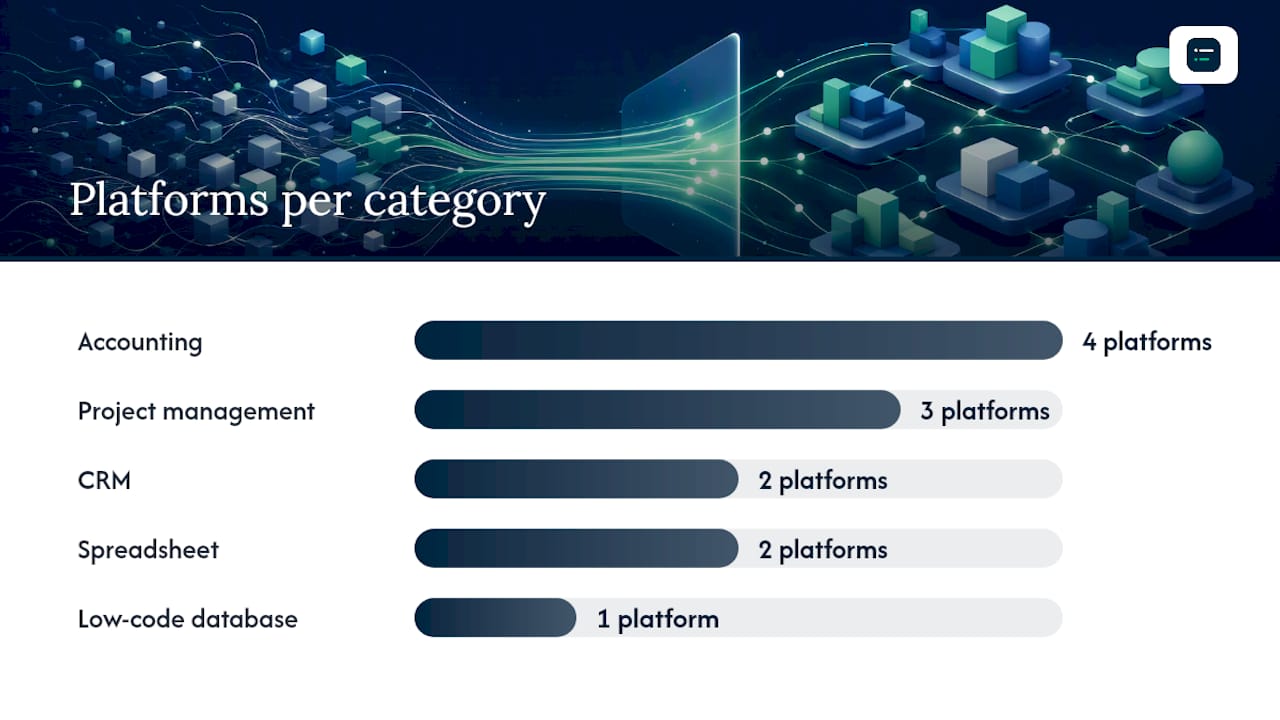
| Spreadsheet use | Software category | Example platforms |
|---|---|---|
| Client list and contact history | CRM | HubSpot, Pipedrive |
| Invoicing and VAT returns | Accounting | Xero, QuickBooks Online, Sage Business Cloud, FreeAgent |
| Project and task tracking | Project management | Monday.com, Asana, Notion |
| Flexible relational data | Low-code database | Airtable |
| Financial modelling (keep as-is) | Spreadsheet | Microsoft Excel, Google Sheets |
Note that Microsoft Excel and Google Sheets remain the right choice for genuine financial modelling and ad hoc analysis. The goal is not to eliminate spreadsheets entirely; it is to stop using them as databases, CRMs, or project trackers.
When evaluating any vendor for a UK practice, check these dimensions:
- UK VAT and Making Tax Digital (MTD) support. Xero, QuickBooks Online, Sage Business Cloud, and FreeAgent all support MTD for VAT. Confirm the specific MTD phase your business falls under and verify the tool is on HMRC's recognised software list.
- Data residency. Where are your client records stored? EU or UK data centres are preferable for GDPR compliance. Check the vendor's data processing agreement.
- Bank feed integrations. For UK accounting tools, confirm support for your bank. Xero and QuickBooks Online both support Open Banking feeds from major UK banks including Barclays, HSBC, Lloyds, and NatWest.
- Payroll and CRM integrations. If you run payroll in-house, check whether the accounting tool connects to your payroll provider. If you use a CRM, confirm a native or Zapier-based integration exists.
- Import support. Does the vendor provide a CSV import template? Does it support field mapping in the UI? Can you import historical records, or only current ones?
- Pricing model. Most UK accounting tools charge per month per organisation, with additional fees for payroll add-ons or extra users. Airtable charges per seat. Factor in the total cost across your team, not just the base plan.
- Support and training. Look for UK-based support hours, a help centre with video walkthroughs, and a certified partner network if you want assisted onboarding.
Airtable deserves a specific mention for teams migrating complex relational spreadsheets that do not fit neatly into accounting or CRM software. It handles linked records, custom views, and formula fields in a way that feels familiar to spreadsheet users, which reduces the learning curve considerably.
How to run a pilot migration with a clear rollback plan
Run a test import with 50–100 records and iterate until field mappings and truncation issues are resolved. Import in batches rather than a single full import to reduce the blast radius of any error.
Follow this pilot checklist in sequence:
- Export your pilot dataset as a clean CSV from the audited, cleaned source file.
- Map every CSV column to a target field in the new system. Note any fields that have no equivalent and decide whether to create a custom field or discard the data.
- Import 50–100 rows. Check for field truncation (long text fields cut off), encoding errors (special characters mangled), and blank required fields.
- Validate relational links. If contacts should be linked to companies, confirm those links resolved correctly.
- Spot-check 10 records manually against the source file. Every field should match.
- Run a record count. The number of rows in your CSV should equal the number of records imported, minus any deliberate exclusions.
- Trigger one automation (for example, a welcome email or a task assignment) and confirm it fires correctly.
- Check permissions. Log in as a standard user and confirm they cannot see data they should not.
If the pilot passes all eight checks, import the next batch of 200–500 records and repeat the spot-check. Scale up only when each batch validates cleanly.
Rollback criteria. Stop the import and freeze all changes if:
- Record counts are off by more than 1%
- Any financial figure (invoice amount, balance, tax code) does not match the source
- Automations fire incorrectly or send communications to real clients
- A permission error exposes restricted data
Rollback steps: mark the new system as read-only for all users, restore access to the original read-only spreadsheet archive, log the failure point and the specific records affected, and do not attempt a second import until the root cause is identified and fixed.
Phased delivery with a 30–60 day parallel run reduces disruption significantly. Keep both systems running simultaneously, with the new system as the primary record and the spreadsheet as a read-only reference, until you are confident the data is clean and the team is comfortable.
Training and change management: making the new system stick
The technology is rarely the problem. Teams revert to shadow spreadsheets when leadership does not use the new system, when old editable files are still accessible, and when there is no clear owner for the transition.
Structure training by role:
- Admins and power users: 90-minute session covering data entry, reporting, user management, and integrations. Run this before go-live.
- Regular users: 30-minute session covering their specific workflows only. Run this on go-live day or the day before.
- Occasional users: A two-page quick-reference guide and a recorded walkthrough they can watch on demand.
For each session, build a short workflow template in the new system so users practise on real tasks, not dummy data. The AI Ledger's guide to building accounting workflow templates covers how to structure these for common practice tasks.
Parallel running checklist:
- Set a firm cutover date at the start of the parallel period, not at the end.
- Make all original spreadsheets read-only on go-live day. Do not wait.
- Run weekly check-ins inside the new system for the first four weeks. If the meeting happens in a spreadsheet, you have already lost.
- Nominate a champion in each team or department. Their job is to answer quick questions and flag recurring confusion to the migration lead.
Assign these roles before go-live:
- Migration lead: owns the timeline, resolves blockers, and reports to the executive sponsor.
- Data steward: responsible for data quality decisions during and after migration.
- Help responder: first point of contact for user questions in the first 30 days.
- Executive sponsor: uses the new system visibly and publicly. This single behaviour has more influence on adoption than any training session.
Realistic timelines and cost bands for UK businesses
The pre-migration cleanup and the first 30 days after go-live are where migrations succeed or fail. Budget accordingly.
| Phase | Small team (under 10 users) | Mid-size team (10–50 users) |
|---|---|---|
| Audit and scoping | 1–2 days | 3–5 days |
| Data cleanup | 3–7 days | 1–3 weeks |
| Pilot import and testing | 2–3 days | 1 week |
| Training | 1 day | 3–5 days |
| Parallel run | 2 weeks | 4–8 weeks |
| Full cutover | 1 day | 2–3 days |
| Total | 3–5 weeks | 6–12 weeks |
Cost bands vary considerably depending on whether you manage the migration yourself or bring in a consultant:
- DIY migration: Software licence costs only. Most UK accounting tools start at £12–£35 per month for a small team. Airtable's paid plans start at around £10 per user per month. Budget 20–40 hours of internal staff time for a small pilot.
- Assisted migration: A UK-based certified Xero or QuickBooks partner typically charges £500–£2,500 for a small practice migration, depending on data volume and complexity. Custom integrations or macro translation can add £1,000–£5,000 on top.
- Hidden costs to plan for: custom field setup, third-party integration tools (Zapier or Make), additional user licences beyond the base plan, and ongoing training for new starters.
The ROI case is straightforward. If your team spends five hours per week on manual data entry and reconciliation that software would handle automatically, that is roughly 250 hours per year. At an average UK bookkeeper rate of £25–£35 per hour, that is £6,250–£8,750 in recoverable time annually. Automation reduces that grunt work significantly once the migration is complete.
Common pitfalls and how to avoid them
Most migrations that fail do so for predictable reasons. Here are the ones worth planning around:
- Importing dirty data. The single most common cause of post-migration complaints. Fix: complete the full data-cleaning checklist before the first import, not after.
- Insufficient training. Users who do not understand the new system revert to what they know. Fix: role-specific sessions, not a single all-hands demo.
- Keeping editable shadow spreadsheets. If the old file is still writable, someone will use it. Fix: make originals read-only on go-live day, without exception.
- Overcustomising at launch. Adding every possible custom field, workflow, and integration before anyone has used the system creates confusion. Fix: launch with the minimum viable configuration and add complexity after the team is comfortable.
- Ignoring integrations until after go-live. Discovering that your accounting tool does not connect to your payroll provider after you have migrated 2,000 client records is an expensive surprise. Fix: verify every integration in a sandbox environment during the pilot phase.
- No post-migration reconciliation. Assuming the data is correct because the import completed without errors is a mistake. Fix: run a reconciliation report comparing record counts, key totals, and a random sample of 50 records against the source file within 48 hours of each batch import.
For a broader look at the workflow bottlenecks that migration typically resolves, and a few it can introduce if managed poorly, that guide covers the most common patterns in UK practices.
Where to find and compare UK-ready tools
Vendor research is the part of a migration that eats the most time for the least return. Evaluating 20 tools in depth when you only need one is a distraction from the actual migration work.
The AI Ledger is an independent directory of 100+ AI tools for accountants and bookkeepers. Each listing carries an editor score, an honest verdict, and a last verified date. Scores are never for sale and listings are independently reviewed, so the rankings reflect editorial judgement rather than marketing spend.
Practical ways to use it:
- Run the 30-second tool finder at Ailedger to produce a shortlist matched to your specific task (data entry, reconciliation, VAT prep, payroll) and your existing software stack.
- Use the side-by-side comparison tool to evaluate two or three shortlisted tools against each other on the dimensions that matter: import support, UK VAT features, bank feed integrations, and pricing.
- Check the last verified date on each listing before you act on it. Software pricing and features change frequently; a listing verified within the last 90 days is more reliable than one from 18 months ago.
Once you have a shortlist, go directly to each vendor's documentation to verify CSV import templates, field mapping support, and MTD compatibility. Do not rely on marketing pages for technical detail.
What migration work actually looks like in practice
The most consistent lesson from small UK practice migrations is that cleanup takes far longer than anyone expects. Teams routinely underestimate the state of their own data. That is not unusual; it is the norm.
Test imports are not optional. Every migration I have seen that skipped the 50-record test import hit a field-mapping problem at full scale that took days to unpick. Running the test costs two hours. Skipping it costs two days.
Leadership behaviour is the most underrated adoption lever. When the senior partner or the business owner does their weekly review inside the new system, the rest of the team follows within a fortnight. When they keep a personal spreadsheet "just for now," that spreadsheet becomes the de facto record within a month.
One pattern that comes up repeatedly: a small UK bookkeeping practice migrates its client list to a CRM, completes the training, and declares success. Six weeks later, the admin team is maintaining a parallel spreadsheet because one report they need is not yet configured in the new tool. The fix is not technical; it is a 20-minute conversation to build the missing report. The lesson is to audit what reports people actually use before go-live and build them in the new system before you cut over.
The AI Ledger helps you shortlist the right tools faster
Picking the wrong software after a migration is expensive, both in time and in the cost of migrating again. The AI Ledger exists to cut that risk down.
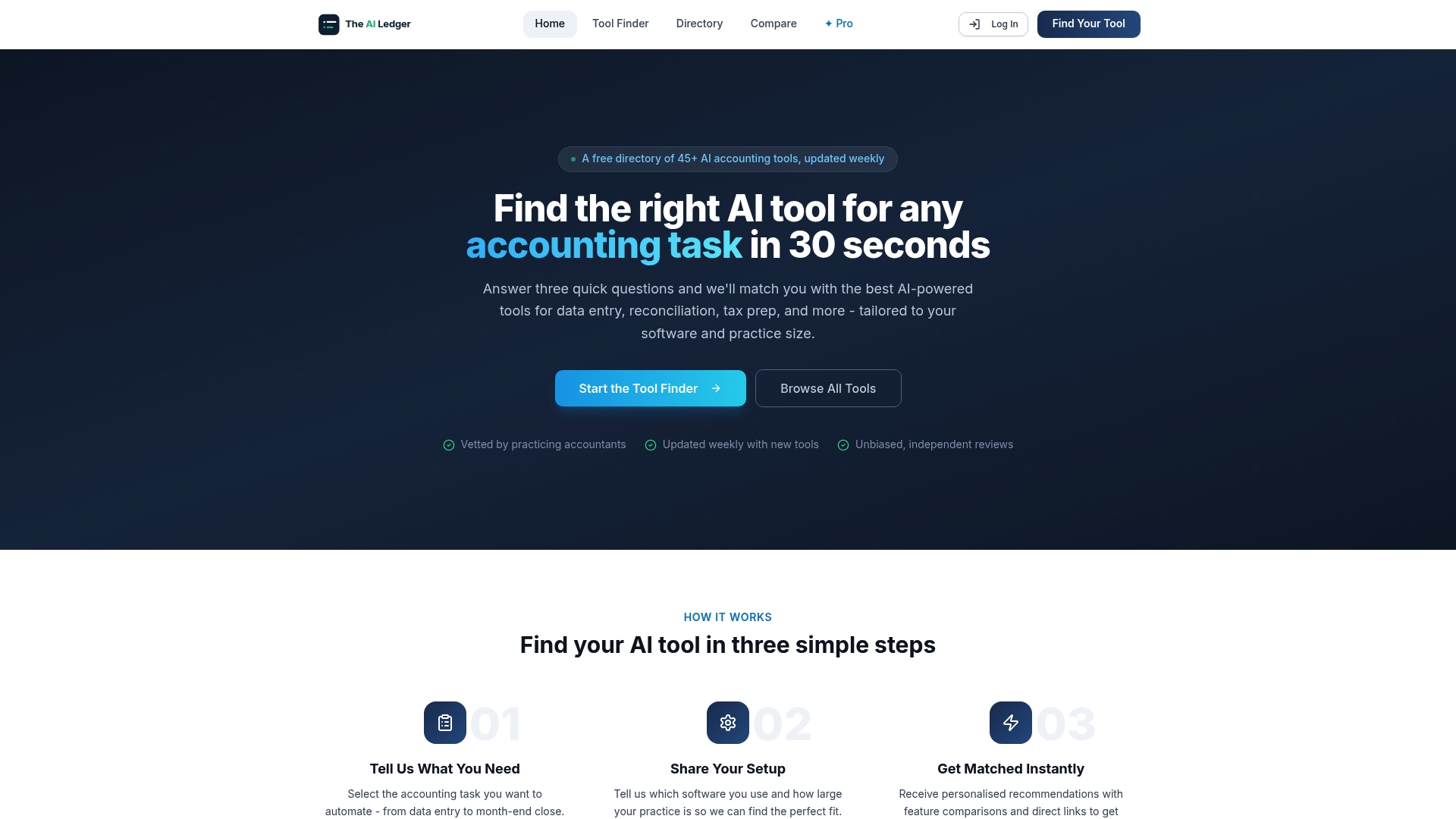
The directory covers 100+ independently reviewed AI tools for accountants and bookkeepers, with editor scores that are never for sale and a last verified date on every entry. The 30-second tool finder matches your practice to the right software for your specific tasks, whether that is data entry, bank reconciliation, VAT prep, or payroll, without you having to wade through vendor marketing. Every listing shows you what the tool actually does, what it costs, and whether it has been verified recently.
Start your shortlist now at The AI Ledger directory. Run the tool finder, compare two or three options side by side, and go into vendor conversations knowing exactly what questions to ask.
Sources
- How to Migrate from Spreadsheets to CRM Without Losing Data (2026) | Softabase
- Migrating from Excel to Software: A Practical Guide for Service Firms | Yonetior Blog
- Ditching Spreadsheets: A Step-by-Step Guide to Moving Your Leads into a CRM | Raion Tech Blog | Raion Tech
- Legacy System Modernization: Replace Spreadsheets with Software | SoftDoes
- Challenges of transitioning from spreadsheets to CRM for marketing teams | Nutshell